Gemini endpoint probe setup
Setting up synthetic probes for Google's Gemini API endpoints is one of the most effective ways to monitor real-world latency before your users experience slowdowns. Unlike dashboard aggregates that hide regional variance, probes measure actual request times from distributed locations, giving you the data you need to catch degradation early, compare provider performance, and route traffic intelligently.

Photo by Busenur Demirkan from Pexels
Setting up synthetic probes for Google's Gemini API endpoints is one of the most effective ways to monitor real-world latency before your users experience slowdowns. Unlike dashboard aggregates that hide regional variance, probes measure actual request times from distributed locations, giving you the data you need to catch degradation early, compare provider performance, and route traffic intelligently.
This guide walks you through configuring Gemini probes across Observinio's 21 global regions, interpreting TTFB (Time to First Byte) and TTFT (Time to First Token) metrics, setting up degradation alerts, and using probe data to make routing decisions.
TL;DR
- Gemini probes measure latency from 21 regions to detect regional slowdowns before users complain.
- Set up API authentication (service account or OAuth), configure probe frequency (daily or hourly), and choose your target models.
- Monitor TTFB (initial response time) and TTFT (time to first token) as your primary SLI metrics.
- Regional variance often exceeds 2–3x; use weekly summaries and degradation alerts to stay ahead of incidents.
- Compare Gemini latency against OpenAI or OpenRouter to justify provider routing decisions.
Key takeaway: Synthetic probes transform API monitoring from reactive incident response to proactive performance management. By measuring latency from 21 global regions, you detect degradation within minutes rather than hours, enabling data-driven routing decisions and protecting your users from slowdown-induced churn.
Why Gemini endpoint probes matter
Most teams discover API latency problems through support tickets. By then, users have already abandoned chat sessions or complained on social media. Synthetic probes flip that timeline: you detect degradation within minutes, not hours.
Gemini's global infrastructure spans multiple cloud regions and edge locations. A request from Singapore might take 150 ms to reach the nearest endpoint, while the same request from São Paulo takes 350 ms, not because of Gemini's performance, but because of geography and routing. Without regional probes, your average latency metric (say, 220 ms) masks both the fast and the slow paths.
Additionally, Gemini's performance can shift with model updates, traffic surges, or provider-side optimizations. Daily probes let you:
- Detect regressions within 24 hours of a model release or infrastructure change.
- Compare alternatives by running the same probe against Gemini, OpenAI, and OpenRouter simultaneously.
- Build SLOs on real data instead of guesswork or vendor benchmarks.
- Route traffic by region, sending requests to the fastest available endpoint or fallback provider.
Probe setup: authentication and configuration

Before you deploy probes, configure API access. Gemini endpoints support two authentication flows: service account keys (for backend-to-backend) and OAuth 2.0 (for user-facing apps). For monitoring probes, service accounts are simpler and more reliable.
Step 1: Create a Google Cloud service account
- Go to the Google Cloud Console and select your project.
- Navigate to IAM & Admin > Service Accounts and click Create Service Account.
- Give it a name like
gemini-probe-monitorand add a description. - Grant it the Vertex AI User role (or the narrower
aiplatform.inferenceAgentrole if your project supports custom roles). - Click Create and Continue, then Create Key in JSON format.
- Save the JSON key securely; Observinio will use it to authenticate probe requests.
Step 2: Configure Observinio probe parameters
Once you have the service account key, add a new probe in Observinio:
- Endpoint URL: Use the Gemini API endpoint for your region. For REST:
https://us-central1-aiplatform.googleapis.com/v1/projects/{PROJECT_ID}/locations/us-central1/publishers/google/models/gemini-2.0-flash:streamGenerateContent
- Authentication: Paste the service account JSON key. Observinio will exchange it for an access token before each probe run.
- Request payload: Send a minimal but realistic prompt:
   {
     "contents": [
       {
         "role": "user",
         "parts": [
           {
             "text": "Respond with a single word: healthy"
           }
         ]
       }
     ]
   }
- Frequency: Start with daily probes (once per 24 hours per region). Upgrade to hourly if you need tighter SLOs or are troubleshooting a specific incident.
- Timeout: Set to 30 seconds. Gemini usually responds within 2–5 seconds for simple prompts; 30 seconds gives you room for transient network delays without masking real problems.
- Regions: Select all 21 Observinio regions, or start with your top 5 (e.g., us-east-1, eu-west-1, ap-southeast-1, sa-east-1, ap-northeast-1).
"The following examples show how to make a request using one of the SDKs or REST.">, Get started with Gemini Enterprise Agent Platform
Step 3: Validate the probe
Run a manual test from one region to confirm the setup works. Observinio will show:
- HTTP status: Should be 200.
- TTFB (Time to First Byte): Time from request send to first response byte. For Gemini, typically 200–800 ms depending on region.
- TTFT (Time to First Token): Time from send to first token in the response body. Usually 400–1200 ms because token streaming begins after the initial API response.
- Response body: Should contain the expected completion text.
- Service account has
Vertex AI Userrole. - Project has the Vertex AI API enabled.
- Endpoint URL matches your region (us-central1, europe-west1, asia-east1, etc.).
- Prompt is valid JSON.
Interpreting probe metrics

Two metrics dominate Gemini probe analysis:
TTFB: Time to First Byte
TTFB is the wall-clock time from when you send the request to when the first response byte arrives. It includes:
- Network transit time to Google's endpoint.
- Server-side queueing and routing.
- Initial API response frame generation.
TTFT: Time to First Token
TTFT is the time from request send to the first token of the completion. It includes TTFB plus the time for the model to generate the first token. For streaming responses, this is your user-facing latency, how long they wait before seeing text appear.
Healthy range: 600–1500 ms for Gemini 2.0 Flash. More complex prompts or larger batch sizes can push TTFT higher. Monitor the 95th percentile, not the mean, because outliers can ruin the user experience even if the average is fine.
Regional patterns
Observinio's 21 regions will show you latency tiers:
- Tier 1 (50–300 ms TTFB): US East, US West, Europe West (London, Frankfurt).
- Tier 2 (300–600 ms TTFB): Australia, Japan, Singapore, India.
- Tier 3 (600–1200 ms TTFB): Brazil, South Africa, parts of Southeast Asia not near Singapore.
Setting up degradation alerts
Observinio's degradation alert rule lets you define thresholds and get notified when probes cross them. Here's a practical setup:
Alert rule 1: TTFB spike
- Metric: TTFB
- Condition: If TTFB > 1000 ms for any region for 2 consecutive probes.
- Action: Send email to on-call SRE.
Alert rule 2: Regional variance
- Metric: TTFB 95th percentile, by region.
- Condition: If any region's 7-day 95th percentile TTFB exceeds baseline by 50% or more.
- Action: Create ticket with region name and baseline latency for triage.
Alert rule 3: Model-specific performance drop
If you're comparing Gemini 2.0 Flash against Gemini 1.5 Pro:
- Metric: TTFT for each model.
- Condition: If Flash TTFT exceeds Pro TTFT by >200 ms (unexpected regression).
- Action: Page ML platform team to review model configuration or quota.
Probe setup checklist
Before going live with Gemini probes, run through this checklist:
Your progress is saved automatically in your browser.
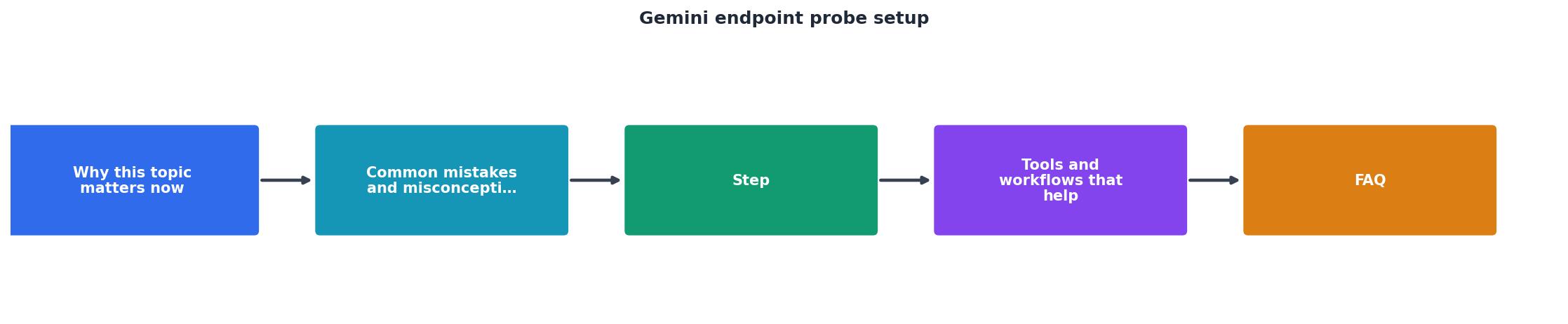
Setup Timeline
- Day 1: Create service account and configure Observinio authentication (15 minutes)
- Day 1: Deploy probes across 21 regions and validate responses (30 minutes)
- Days 2–3: Collect baseline latency data and establish regional performance tiers (48 hours)
- Day 3: Configure degradation alerts and notification channels (20 minutes)
- Day 4: Review first weekly summary and refine alert thresholds (30 minutes)
Total time to full deployment: approximately 4 days including baseline collection.
Practical example: routing decisions based on probe data
Suppose your Observinio dashboard shows Gemini TTFT of 800 ms in us-east-1 but 1400 ms in sa-east-1. If you have a user base in Brazil, routing all requests to sa-east-1 and falling back to OpenRouter in us-east-1 (replicating the result) might give you better experience for local users than always preferring Gemini.
Use this process:
- Export weekly probe summaries from Observinio (CSV or API call).
- Calculate median and 95th percentile TTFT by model and region.
- Compare against your fallback provider (e.g., OpenAI or OpenRouter running parallel probes).
- Build a routing table: if Gemini TTFT > OpenRouter TTFT + 200 ms in a region, route to OpenRouter.
- Update your app's model selection logic to use this table (reload weekly or on alert).
FAQ
Frequently Asked Questions
Get started with confidence
Gemini endpoint probes are your first line of defense against latency-induced churn. Once probes are running and alerts are configured, you've moved from reactive incident response to proactive performance management. Your on-call team will spot regional slowdowns before support tickets arrive, your ML platform engineers will have hard data for routing decisions, and your CTO will sleep better knowing external API dependencies are being watched 24/7.
Start with daily probes on your top 5 regions, gather a week of baseline data, and then expand to 21 regions as you fine-tune your alert thresholds. Observinio's degradation alerts and weekly summaries make it easy to stay on top of trends without manual dashboard checking.
If you're already monitoring OpenAI or OpenRouter latency, adding Gemini probes takes just a few minutes and lets you compare all three providers side by side, turning latency data into a competitive advantage.
Additional Resources
- Get started with Gemini Enterprise Agent Platform - Configure your project · Sign in to your Google Account. · In the Google Cloud console, on the project selector page, select or create a Google Cloud project.
- Getting started - Interactions API | Google AI for Developers - This guide gets you started with the Gemini API using the Interactions API. Install the skill and then paste the prompt to get started. The ...
- Google Gemini | Hermes Agent - NOUS RESEARCH - Hermes includes a native Gemini adapter. Hermes probes Gemini API keys during setup. Free-tier quotas can be exhausted after a handful of agent turns because ...
Monitor AI API latency from 22 regions
Observinio runs daily probes against OpenRouter and OpenAI endpoints and emails you when latency degrades.
Set up alerts